Just the Video · Guide
How to Disable YouTube Shorts on a Computer
YouTube has no switch that removes Shorts for good. It has two softer settings, and a browser extension or a filter can do the rest. Here is what each way does, step by step, in Chrome, Edge and Firefox.
Short answer. To limit scrolling, set the Shorts feed limit in YouTube’s settings: Settings → Time management. To make Shorts disappear from the home page, search, subscriptions and the menu, use a browser extension such as Just the Video (free) or a uBlock Origin filter. On a phone, the YouTube app has the same feed limit; on Android, Firefox with an extension can also hide Shorts on the YouTube website.
Way 1: set a Shorts feed limit in YouTube’s settings
YouTube lets you set a daily limit for the Shorts feed, the endless vertical scroll. In the YouTube app it is under You → Settings → Time management → Shorts feed limit, from 0 minutes to 2 hours.
YouTube is also adding the setting to youtube.com, so check your computer too:
- Open youtube.com and sign in.
- Click your profile picture in the top right corner, then Settings.
- Open Time management.
- Under Daily limits, turn on Shorts feed and choose a time.
If there is no Time management in your settings on a computer yet, set the limit in the app: it applies to your account.
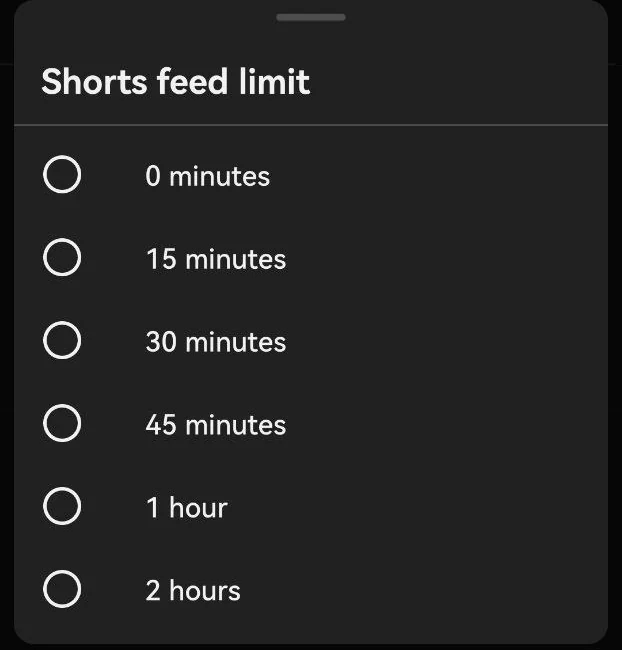
What 0 minutes does and does not do. In the app, a 0-minute limit stops the Shorts feed and, as PCMag found, also takes the Shorts row off the home screen. But Shorts still show up in search results, in your subscriptions and in links people send you. When the time is up, YouTube shows a reminder, and its help page says you can dismiss or ignore it: one tap and the feed is back.
Way 2: tell YouTube to show fewer Shorts
On the home page, find a row of Shorts and click the three-dot menu next to the word Shorts, then Show fewer Shorts. The app has the same item in the menu of a Shorts grid.
This lowers how often YouTube recommends Shorts on the home page and next to videos. It does not remove them from search, and YouTube does not say how long the choice lasts. To undo it, open My Activity, choose Other activity and delete the “Show fewer Shorts” entry (YouTube help).
Way 3: hide Shorts with a browser extension
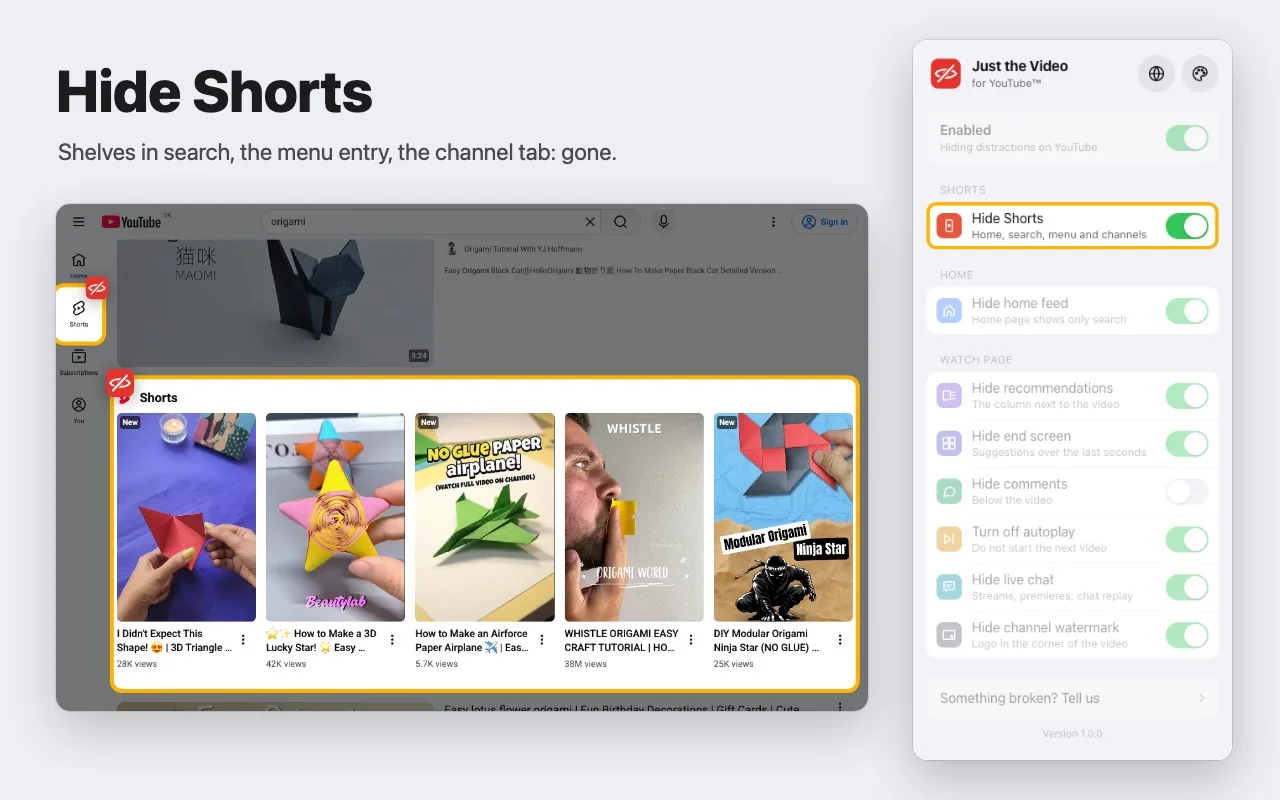
A browser extension can remove Shorts from the page itself. Just the Video is a free extension made for this. One switch hides Shorts everywhere on YouTube:
- the Shorts rows on the home page and in subscriptions;
- Shorts in search results;
- Shorts next to the video you are watching;
- the Shorts entry in the left menu;
- the Shorts tab on channel pages.
To install it:
- Open Just the Video in the Chrome Web Store (Chrome, Edge, Brave, Opera) or in Firefox Add-ons.
- Click Add to Chrome or Add to Firefox. In Edge, first allow extensions from other stores when Edge asks.
- Open YouTube. Shorts are hidden right away. Click the extension’s icon to change what is hidden.
The other switches hide recommendations next to videos, comments, the end screen and live chat, and turn off autoplay, each on its own. The extension does not block ads, needs no account and sends nothing anywhere.
Way 4: a uBlock Origin filter
If you already use uBlock Origin, you can hide Shorts with your own filter. Open the uBlock Origin dashboard, go to My filters, paste these lines and click Apply changes:
www.youtube.com##ytd-rich-shelf-renderer[is-shorts]
www.youtube.com##ytd-rich-section-renderer:has(> #content > ytd-rich-shelf-renderer[is-shorts])
www.youtube.com##ytd-reel-shelf-renderer
www.youtube.com##ytd-search grid-shelf-view-model:has(ytm-shorts-lockup-view-model-v2, ytm-shorts-lockup-view-model)
www.youtube.com##ytd-search ytd-video-renderer:has(a[href^="/shorts/"])
www.youtube.com###related ytd-reel-shelf-renderer
www.youtube.com###related yt-lockup-view-model:has(a[href^="/shorts/"])
www.youtube.com##ytd-guide-entry-renderer:has(> a[title="Shorts"])
www.youtube.com##ytd-mini-guide-entry-renderer:has(> a[href^="/shorts"])
www.youtube.com##yt-tab-shape[tab-title="Shorts"]
These are custom filters: they hide parts of the page in your own browser and are not provided or endorsed by YouTube. They match the rules Just the Video uses as of October 2026. YouTube changes its page often, and then a filter quietly stops working until you find new lines; the extension gets updated when that happens.
On a phone or a TV
- YouTube app (Android and iPhone): the Shorts feed limit and “Show fewer Shorts” from Ways 1 and 2 work there; a 0-minute limit takes Shorts off the home screen, but not out of search or subscriptions. Nothing removes Shorts from the app completely.
- Android: install Firefox for Android, add Just the Video from Firefox Add-ons and watch YouTube on m.youtube.com in Firefox. There the extension hides the Shorts tab and Shorts in the home feed, subscriptions, search and next to videos. It does not change the YouTube app.
- iPhone and TVs: extensions cannot change the YouTube app, so Ways 1 and 2 are all there is.
Questions
Can I turn off YouTube Shorts permanently?
No, not completely with YouTube’s own settings. A 0-minute feed limit hides most Shorts in the app, but they still appear in search and subscriptions, and the limit can be ignored with one tap. “Show fewer Shorts” only lowers how often Shorts are recommended. An extension or a filter hides Shorts in the browser for as long as it is on.
Will Shorts come back?
With YouTube’s settings they can, since those only limit or reduce them. With an extension or a filter they stay hidden unless YouTube changes its page; a maintained extension then gets an update.
Does Just the Video hide Shorts in search results?
Yes. It hides Shorts rows and single Shorts in search results, which YouTube’s own settings do not touch.
Does it block ads?
No. Just the Video hides parts of the page, such as Shorts and recommendations. It does not touch ads, the player or your account.